
MacBook Air M3/M4 Wallpapers: Best Free Picks
Here are the best free wallpapers for MacBook Air M3 and M4, with the exact screen sizes for the 13-inch (2560×1664) and 15-inch (2880×1864) models. All are 4K and watermark free.
The MacBook Air is made for everyday use: study, work, browsing and travel. A clean, bright wallpaper suits that style, and soft colours also keep the menu bar easy to read in sunlight.
Good news for M3 and M4 owners: both chips use the same screen sizes, so every wallpaper in this guide fits both models. Download one 4K file and it works on the 13-inch and the 15-inch Air.
We picked ten wallpapers in light, colourful and calm styles. Each opens on its own WallNest HD page with a free full-size download.
📐 MacBook Air Wallpaper Sizes
- MacBook Air 13-inch (M3 & M4): 2560×1664 px
- MacBook Air 15-inch (M3 & M4): 2880×1864 px
- Best download: 3840×2400 px (4K) or larger
- Always use a landscape picture
💻 How to Set a MacBook Wallpaper
- Download the image from the wallpaper page and open System Settings → Wallpaper
- Click Add Photo and choose the downloaded file
- Select Fill Screen so the picture is never stretched
- Turn on Show on all Spaces if you use several desktops
The MacBook Air is the laptop most students, writers and everyday users choose, so its wallpaper should be easy to live with. This guide gives you the exact screen sizes for the M3 and M4 Air in 13 and 15 inches, advice on colours that look best on its bright display, and ten free 4K wallpapers.
What Makes the MacBook Air Display Different
The MacBook Air uses a Liquid Retina LCD display. It is bright and sharp with good colour, but it does not have the mini-LED depth of the Pro, so very dark wallpapers look slightly less deep. Light, pastel and colourful wallpapers show off the Air screen better, and they stay readable when you work near a window.
Another difference is the notch. The newer Air models also have a notch in the menu bar area, so the same tips apply: choose a calm, even top edge and avoid a bright object at the top centre.
📏 Air Screen Facts
- MacBook Air 13-inch (M3 & M4): 2560×1664 native resolution
- MacBook Air 15-inch (M3 & M4): 2880×1864 native resolution
- Default scaled look: about 1470×956 on the 13-inch
- Best wallpaper file: 3840×2400 or larger
- Display type: LCD with bright, clean colour
Top 10 MacBook Air Wallpapers

Soft Orange and Pink Curves
Warm curved shapes in orange and pink. The MacBook Air screen is bright and colourful, so these tones look fresh and friendly. The simple shapes never feel busy, which makes it a great background for study notes and documents.
View & Download
Twilight Sky in Blue and Pink
A smooth gradient sky after sunset, moving from blue to pink. The open space leaves room for icons, and the soft colour is easy on the eyes in a bright room or a cafe.
View & Download
Pastel Evening Clouds
Pink and grey clouds in gentle evening light. A tidy, quiet picture that keeps the menu bar text readable even at high brightness, which is useful when you work outdoors or by a window.
View & Download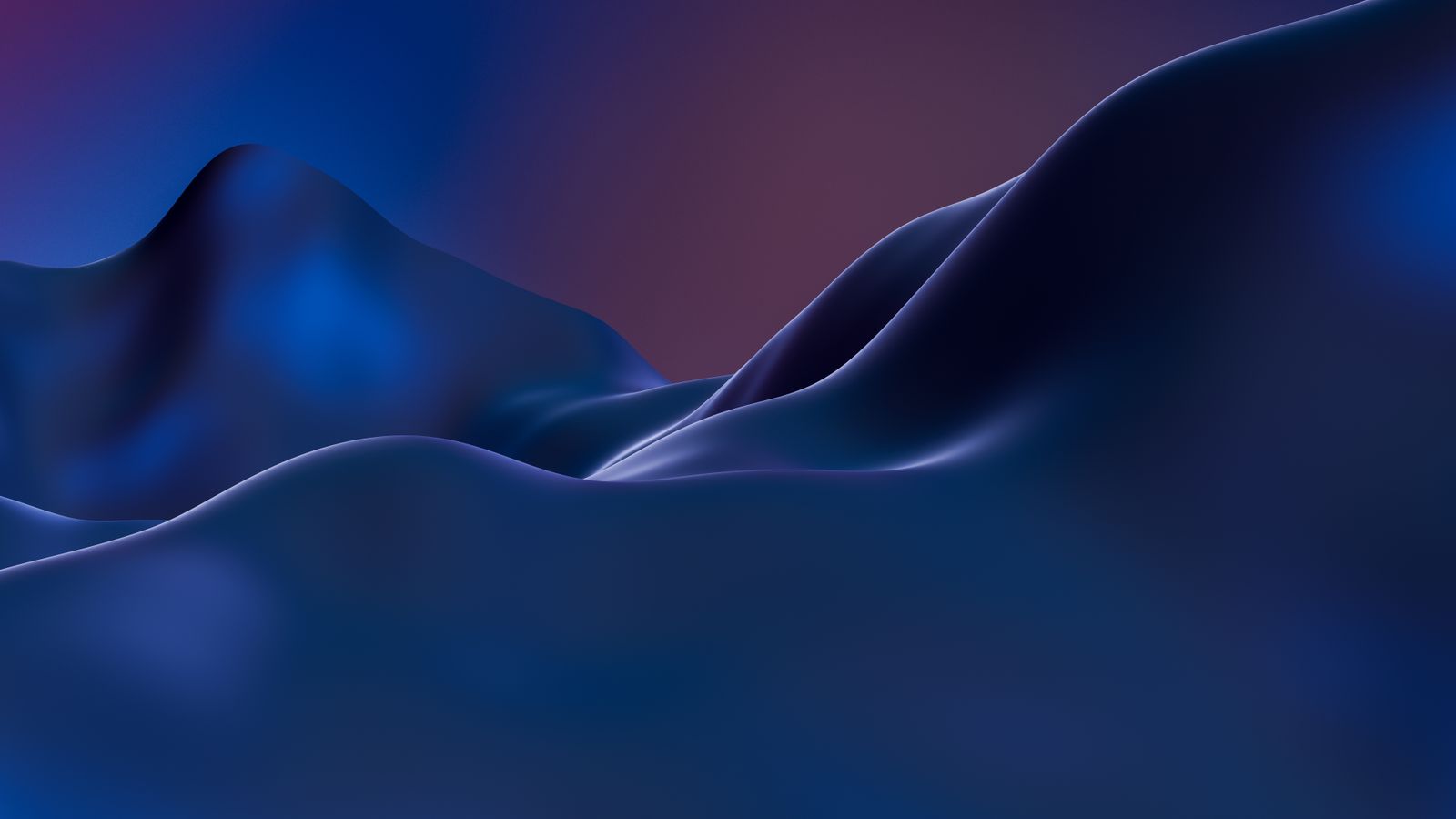
Abstract Blue Digital Landscape
Smooth blue curves in a modern digital style. The clean look suits students and developers, and the cool colour matches the Midnight, Starlight and Sky Blue Air finishes well.
View & Download
Light Blue Abstract Texture
Soft blue tones with a painted texture. It feels light and airy, and it keeps text and icons clear in Light appearance. Good for a calm, minimal desktop.
View & Download
Purple and Green Gradient
A smooth blend of purple and green with no objects. Because the colour is even, files and folders are very easy to find, making it ideal for a busy desktop.
View & Download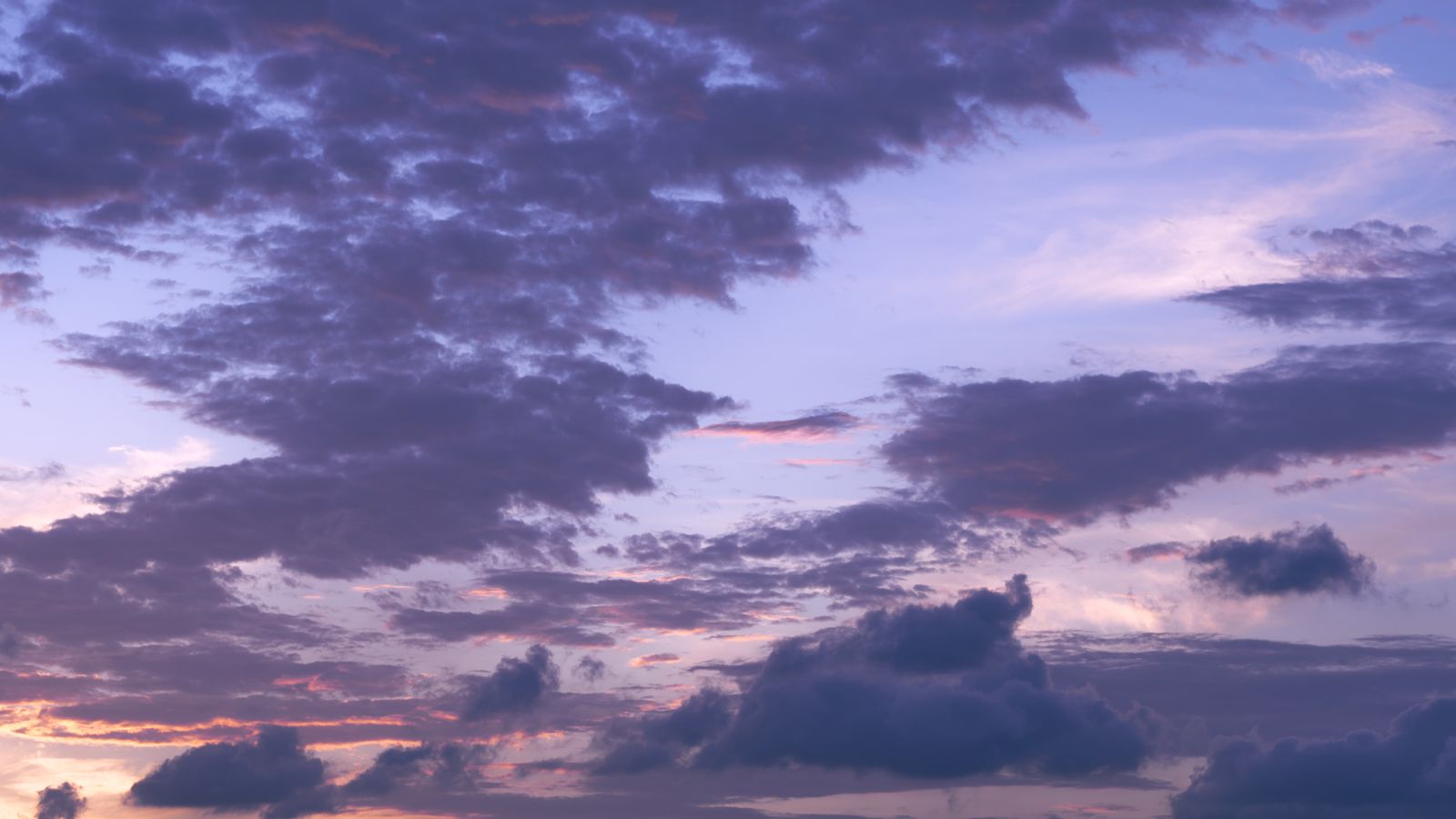
Purple and Pink Twilight Clouds
Large clouds lit in purple and pink at twilight. This wallpaper adds energy to the Air desktop, and the bright colours look lively on the LCD display.
View & Download
Dreamy Pink and Purple Sunset
A soft sunset with layered pink and purple clouds. It is calm and eye-catching at the same time, and the gentle gradient keeps your icons readable.
View & Download
Soft Pink Cloudscape
An airy cloudscape in pale pink and soft blue. The picture feels peaceful and light, which suits note taking, reading and relaxed browsing.
View & Download
Teal Water Ripples
Calm teal water with fine ripples and drops. A fresh, clean picture that gives a cool feeling to the screen and fits a summer or holiday mood.
View & DownloadIs the M4 Air Screen Different From the M3?
No. The M3 and M4 MacBook Air models share the same display sizes and resolutions, so every wallpaper in this guide works on both. The difference between M3 and M4 is in the chip and features, not in the picture you set as a wallpaper. If you upgrade from an older Air, your old wallpaper may be smaller, so it is worth downloading a fresh 4K version.
Best Colours and Styles for MacBook Air
Pastel gradients, light skies and soft abstract shapes are the best match. They keep the menu bar and Dock readable, they do not tire the eyes during long sessions, and they look clean in Light appearance. If you prefer Dark appearance, choose a wallpaper with a deeper tone, like the purple twilight clouds, and make sure the top is not too bright.
Avoid very busy photos if your desktop has many files, because the Air has a smaller screen and the icons can cover the picture. A smooth gradient or a calm texture is always the safest option.
How to Set a Wallpaper on MacBook Air
💻 Step by Step
- Download the 4K image to your Downloads folder
- Open the Apple menu and choose System Settings → Wallpaper
- Click Add Photo and select the file
- Choose Fill Screen so the picture is not stretched
- Use Show on all Spaces if you work across several desktops
On older macOS, open System Preferences → Desktop & Screen Saver and add the folder with your images.
Wallpaper Tips for Battery and Focus
A wallpaper does not change battery life in a big way on an LCD screen, so choose by comfort and focus instead. Lower the screen brightness a little when you use a bright wallpaper, and turn on True Tone and Night Shift in the evening to protect your eyes. For focus, keep your desktop tidy: right-click and choose Use Stacks to group files by type, so the wallpaper stays clean behind your windows.
Fix a Blurry Wallpaper on MacBook Air
🔧 Quick Fixes
- Download the largest available file
- Avoid sending the picture through chat apps that compress it
- Use Fill Screen instead of Stretch
- Choose pictures with open space at the top and sides
- Restart the Mac if the wallpaper does not update
Free to Use, No Watermark
The photos in this guide come from the free-to-use Pexels library, and every wallpaper opens on its own WallNest HD page with a free full-size download. No sign-up and no watermark.
Best Wallpapers for Students, Writers and Cafe Work
If you use your Air for study or writing, choose a wallpaper that stays quiet. Smooth gradients and pastel textures keep your attention on documents, notes and browser tabs. If you work in cafes or near windows, pick brighter wallpapers, because a very dark picture can show reflections and make the screen harder to read. A medium-light wallpaper keeps the menu bar clear and lowers the contrast between your windows and the desktop, which is easier on the eyes in bright places.
Light or Dark Appearance on the Air
On a MacBook Air, Light appearance usually feels clean and bright, and it matches pastel wallpapers best. Dark appearance is great in the evening, but because the Air has an LCD display, a black wallpaper shows a slight glow, especially in a dark room. If you like Dark appearance, choose a wallpaper with a deep colour tone instead of pure black, such as dark purple, which looks smoother on this screen.
How Often Should You Change Your Wallpaper?
Many people keep one wallpaper for months, and that is fine. If you like variety, a simple method is to change it with the seasons, or once a month. Keep a folder of favourite 4K files so you can switch in seconds. You can also let macOS rotate pictures from a folder automatically, which is handy if you have many favourites. Just make sure every file in the folder is high resolution, so no picture looks blurry when it appears.
How to Test a New Wallpaper Before You Keep It
Before you keep a wallpaper, do a quick test. Set it, open your normal apps, and look at the menu bar, the Dock and your desktop icons. Check that text is easy to read, that the notch area looks clean, and that the colours do not feel too strong after a few minutes. If you work in the evening, test it with Night Shift on, because the warmer screen colour changes how pastel pictures look. If it passes, you have found a wallpaper you will enjoy for a long time. If not, go back to the list, and choose a calmer one.
Finally, remember that you can always return to your previous picture. Keep your old wallpaper file in the same folder, so switching back takes a few seconds and you never lose a setup you liked.
Common Questions
What wallpaper size fits MacBook Air M3?
Is the MacBook Air M4 screen different from the M3?
Which colours look best on a MacBook Air?
Do dark wallpapers look good on MacBook Air?
How do I set a wallpaper on MacBook Air?
Why does my MacBook Air wallpaper look blurry?
Does the MacBook Air have a notch?
Are these wallpapers free?
The photos in this guide come from the free-to-use Pexels library. Every wallpaper opens on its own page with a free download, no watermark and no sign-up. More MacBook guides: Best MacBook Wallpapers 4K 2026, MacBook Pro 14 & 16 Wallpapers, Dark & Minimal MacBook Wallpapers, Halloween MacBook Wallpapers 2026. Also browse our minimal wallpapers, dark wallpapers and AI wallpapers.